QuickBooks Errors that can Lead to Data Loss and their Solutions
Although QuickBooks is a powerful and reliable accounting tool, it is not free from errors and issues. Users often encounter issues and errors in QuickBooks when accessing the company file (QBW) or performing any other operations that rely on it. Most of the errors are associated with corruption in the company file that can occur due to a number of reasons. If the errors are left unresolved, then they can disrupt the organization’s workflow since all the data is stored in the QBW file. In this article, we will discuss some common QuickBooks errors and issues that users often encounter and also provide solutions to resolve them.
Common QuickBooks Company File Errors
Here are some company file-related errors in QuickBooks.
6000 Series Errors
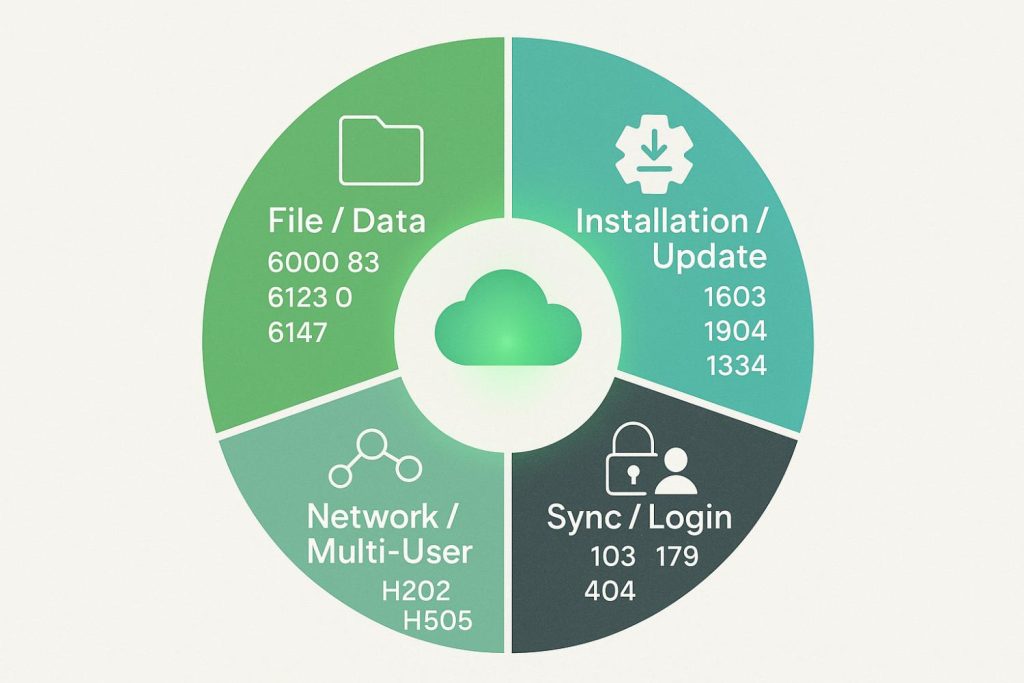
QuickBooks 6000 series errors occur when opening, restoring, or hosting a company file. They usually occur due to damaged company file, incorrect hosting setup, or network problems. These errors can prevent you from accessing the QBW file. Some examples of this error series include -6000, -107 (damaged transaction log), -6010, -100 (file hosted on a non-server computer), and -6189, -83 (file hosted incorrectly).
H Series Errors
You may encounter the H Series errors when trying to access the company file, especially in a multi-user environment. They can usually occur due to corruption in the company file. However, sometimes, network or hosting configuration settings, firewall restrictions, can also stop the application from reading the company file, leading to such errors. Some examples of this error series include H101, H202, H303, H505, and more.
C Series Error Codes
QuickBooks C Series errors are internal error codes that clearly indicate company file damage. You can usually see such errors in the QBWin.log file after failing to open the company file. They occur when QuickBooks crashes, when saving transactions, or during file operations. The reasons might include corrupted data, damaged transaction logs, and network issues. Like H Series and 6000 Series errors, these errors also block access to the company file. Some example of these errors are C=343, C=47, C=224, and C=387.
Solutions to Resolve the QuickBooks Company File Errors
To fix the QuickBooks errors that are related to QBW file, first follow these basic troubleshooting steps:
- Check Hosting Settings
Ensure only the server computer has the hosting setting enabled.
- Check Firewall Settings
Make sure you have configured firewall to allow QuickBooks access.
- Rename ND/TLG Files
Rename configuration files network descriptor (ND) and transaction log (TLG) to reset the connections.
If these steps fails to resolve the errors, this indicates corruption in QuickBooks company file. You can follow the methods mentioned below.
1 – Restore Company File from Backup
If you have a readable backup (.qbb) file, you can easily restore it and replace with the damaged company file. To locate the backup file, go to your Windows search field and search for .qbb. Once you have found the location of the backup file, follow the below steps:
- Open your QuickBooks application, click the File menu, and select the Open or Restore Company option.
- Click Restore a backup copy and click Next.
- Click Local Backup and then click Next.
- Click Browse to select the backup file.
- Next, choose the folder where you want to store your restored company file.
- Once you’re done with this, click the Save option.
2 – Use Verify and Rebuild Data Tool
You can use the Verify and Rebuild Data tool to verify and rebuild the company file data. This helps you to resolve the company file errors in QuickBooks. Here’s how to use this tool:
- In QuickBooks, go to the File option.
- Click Utilities and then select Verify Data.
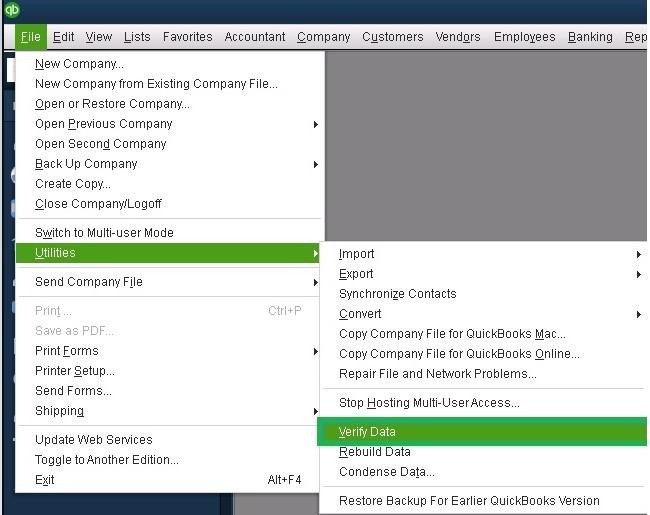
If Verify Data utility finds any issue in the QBW file, then it displays the “rebuild is required” message.
To rebuild the QuickBooks company file, follow the given steps:
- Click the File menu and then click Utilities.
- Next, click Rebuild Data.
- A dialog box appears on the screen asking you to create a backup of the company file. Click OK.
- Select the location where you need to save your backup file and then click OK.
- Click OK on the message that reads “Rebuild has completed.”
- Now again, click File, click Utilities, and select Verify Data to check for further damage.
3 – Download QuickBooks Tool Hub
You can also use the repair tools in QuickBooks Tool Hub to resolve company file issues. The Tool Hub is recommended by Intuit. First, download, install, and launch its latest version, and then follow these steps:
- In the QuickBooks Tool Hub, click Company File Issues.
- Click Run QuickBooks File Doctor tool.
- Click ‘Browse’ to select the company file.
- Click Check your file and then Continue.
- In the dialog box that appears, fill in the QuickBooks admin credentials and click Next.
The tool will start repairing the company file. Wait for the repair process to complete.
Best Way to Repair Corrupt QBW File and Fix the Related Errors
If the above repair methods fail to provide the desired outcomes or your backup file is not available, then you can use a professional QuickBooks repair tool to repair the QBW file. One of the ProAdvisor-recommended tools is Stellar Repair for QuickBooks. It can repair corrupted QBW file as well as QBB file with complete integrity. It can help you to resolve C-series, H-series, and other errors related to corruption in company file. It is compatible with all the QuickBooks versions — from 2007 to 2023. You can use the trial version of this tool to check the recoverable data in corrupt company file.
Conclusion
You can face errors and issues that prevent you from accessing data in QuickBooks application. In this post, we have discussed some common QuickBooks company file errors, along with solutions. You can use the File Doctor tool or Verify and Rebuild tool to fix these errors. If they are not resolved by these tools, you can use an advanced third-party QuickBooks recovery tool, such as Stellar Repair for QuickBooks. The software can repair severely corrupt or damaged QBW file and restore all the data, thus help in resolving the errors.